How to Convert Telugu unicode to Non-unicode - AndhraCode
Welcome to AndhraCode!
If you work with Telugu text and need to convert modern Unicode Telugu into non-Unicode font format — for use in specific design tools — then this simple online converter from AndhraCode is a great free solution. (AndhraCode)
What the Tool Is
The Unicode to Non-Unicode Converter on AndhraCode is a web-based utility that lets you transform standard Telugu Unicode text into a non-Unicode font encoding (often used by software and publishers relying on font systems like Anu fonts). It works right in your browser:
- No software installation required.
- No Login/ SignUp
- No downloads are required.
Warning: This tool is offered “for convenience and experimentation.” You are warned that accuracy and compatibility of the converted text are not guaranteed. You must also have the correct fonts (like Anu fonts) installed from Legal sources to view the converted text properly.
Why You Might Need This
Most modern systems use Unicode, but Most publishing tools, print workflows, or graphic editors still depend on non-Unicode fonts. Converting text lets you reuse your content across both worlds without retyping everything manually. This is especially helpful for Telugu designers, desktop publishing users, and language archivists.
How to Convert unicode to Non-Unicode - AndhraCode
Step 1: Go to Unicode to Non-Unicode from the AndhraCode Home page
Step 2: Enter Your Unicode Telugu Text using Google input Tools or Paste into the Input Field.
Tips:
-
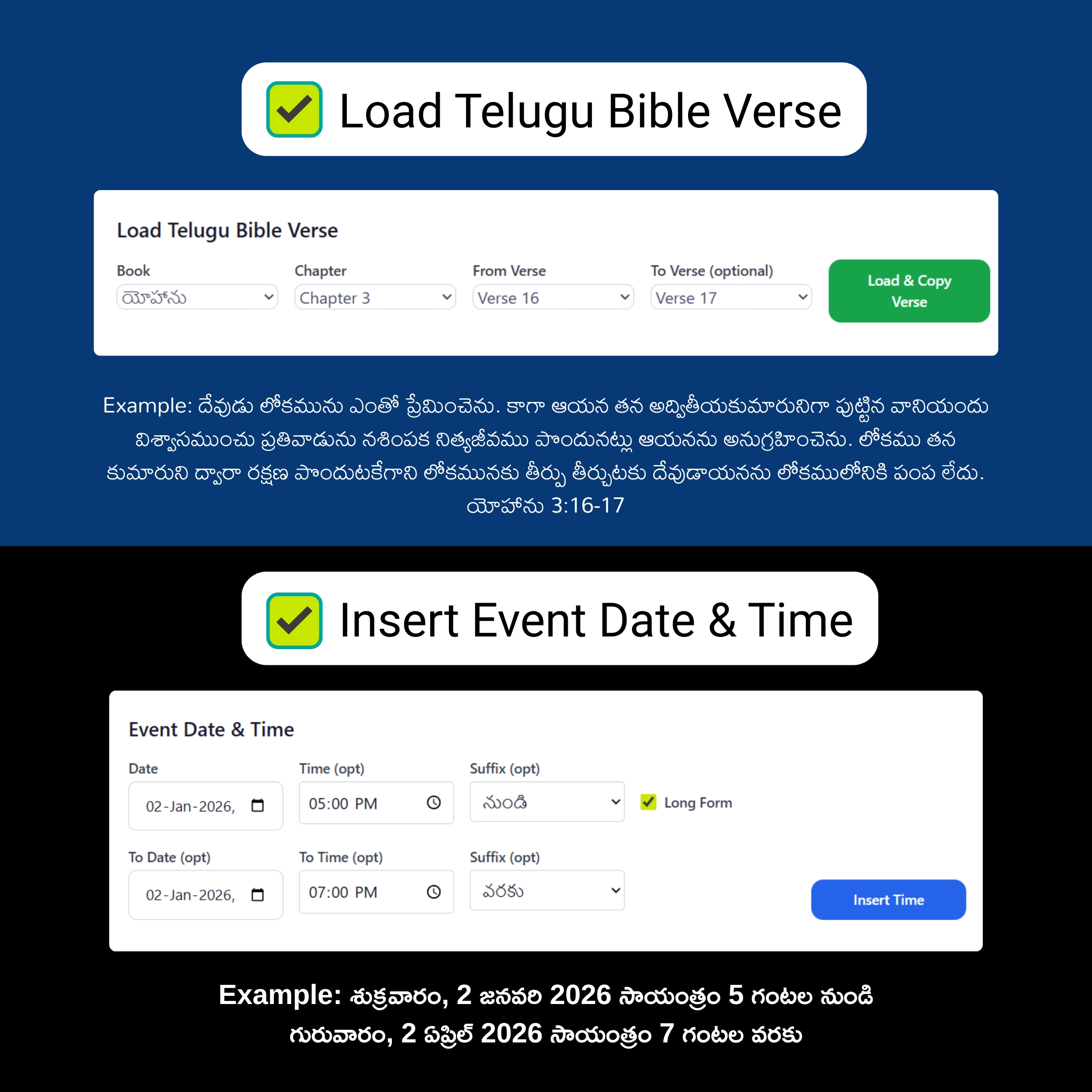
You can also Load the Telugu Bible Verse if You want.
-
You can also Insert the Date and Time of an event by using Insert Event Date & Time Option.
-
When Pasting the Text the Conversion and Copying the converted text is Automatic. No Need of Copying again. This is ON by Default You can Change this by unchecking the "Enable Auto-Copy on Pasting Text" CheckBox. This Feature works well on Windows and Android but on iOS This feature should be Turned Off for Conversion to work and on Mac it's not yet tested . . .
-
"Replace spaces" is the feature to turn On/Off the conversion of unicode space character with Non-Unicode Sapce Character.
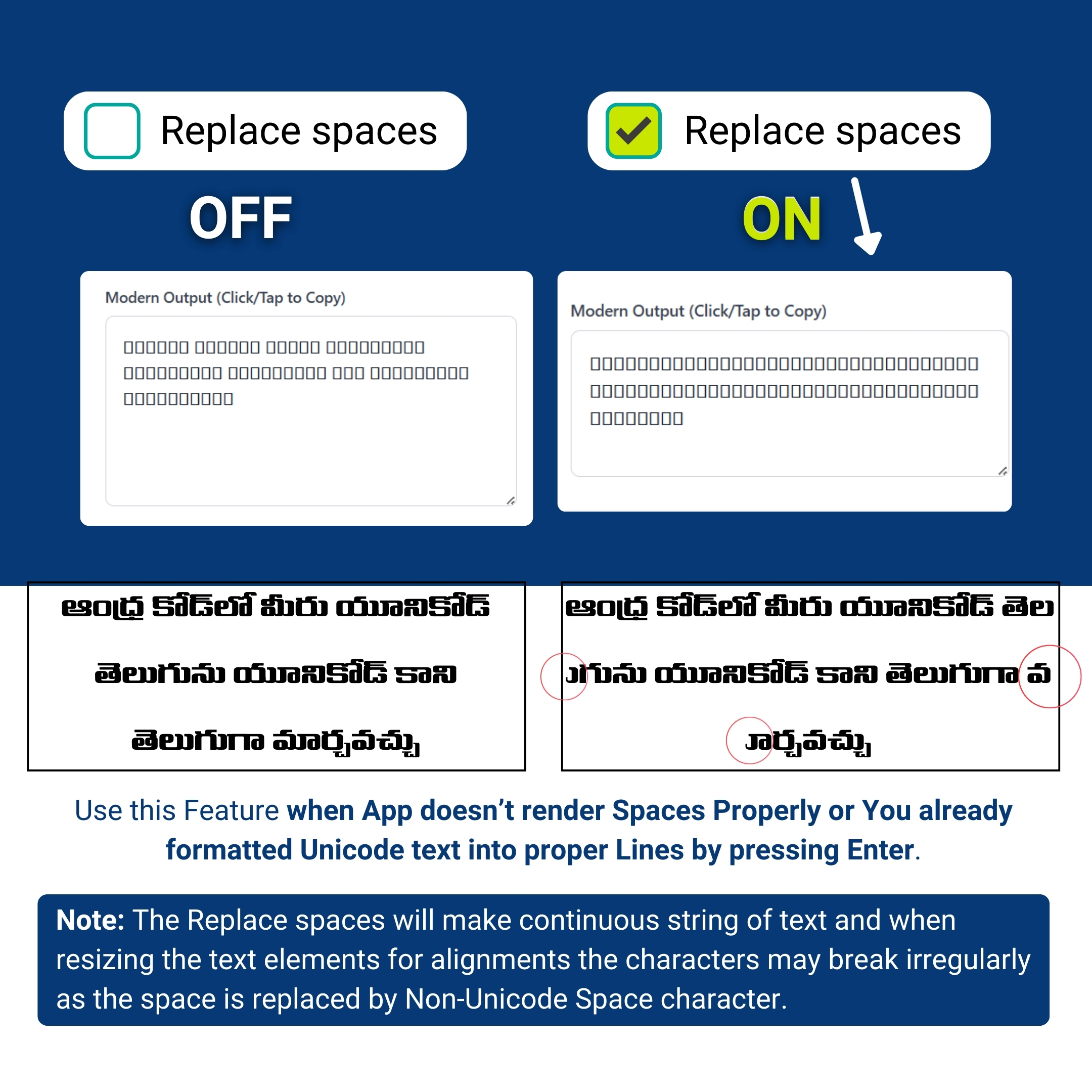 Use this Feature when App doesn’t render Spaces Properly or You already formatted Unicode text into proper Lines by pressing Enter.
Step 3: If you Typed the Text into the Input field then You Need to click Convert & Copy Manually. You can also single click/tap the output field to copy the converted Text
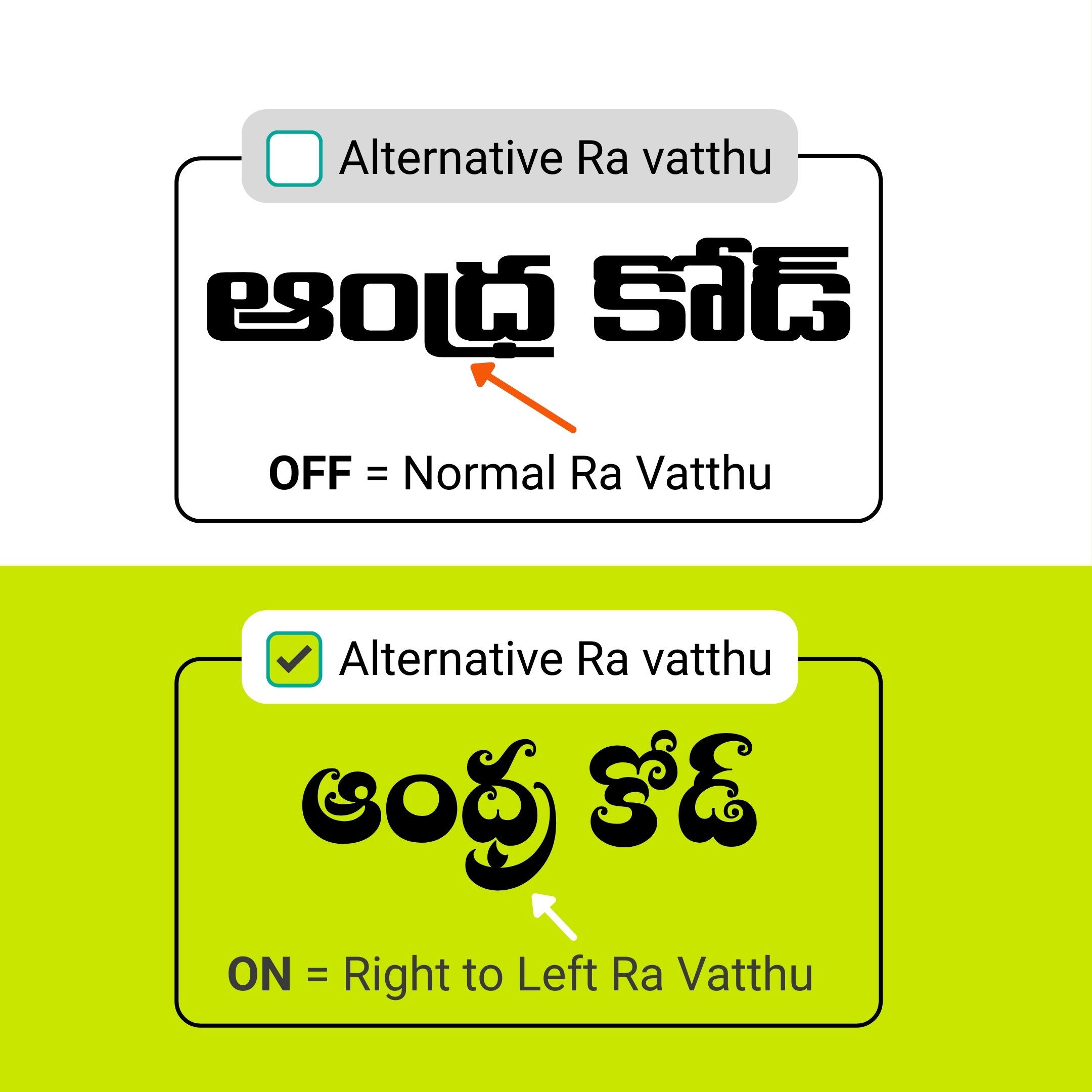
Step 4: For the Fonts like Aaradhana, Amrutha, Bapu Brush, Chandra Script. . . Ra Vatthu is from Right to Left. Use this Feature for Proper Ra Vatthu Rendering.
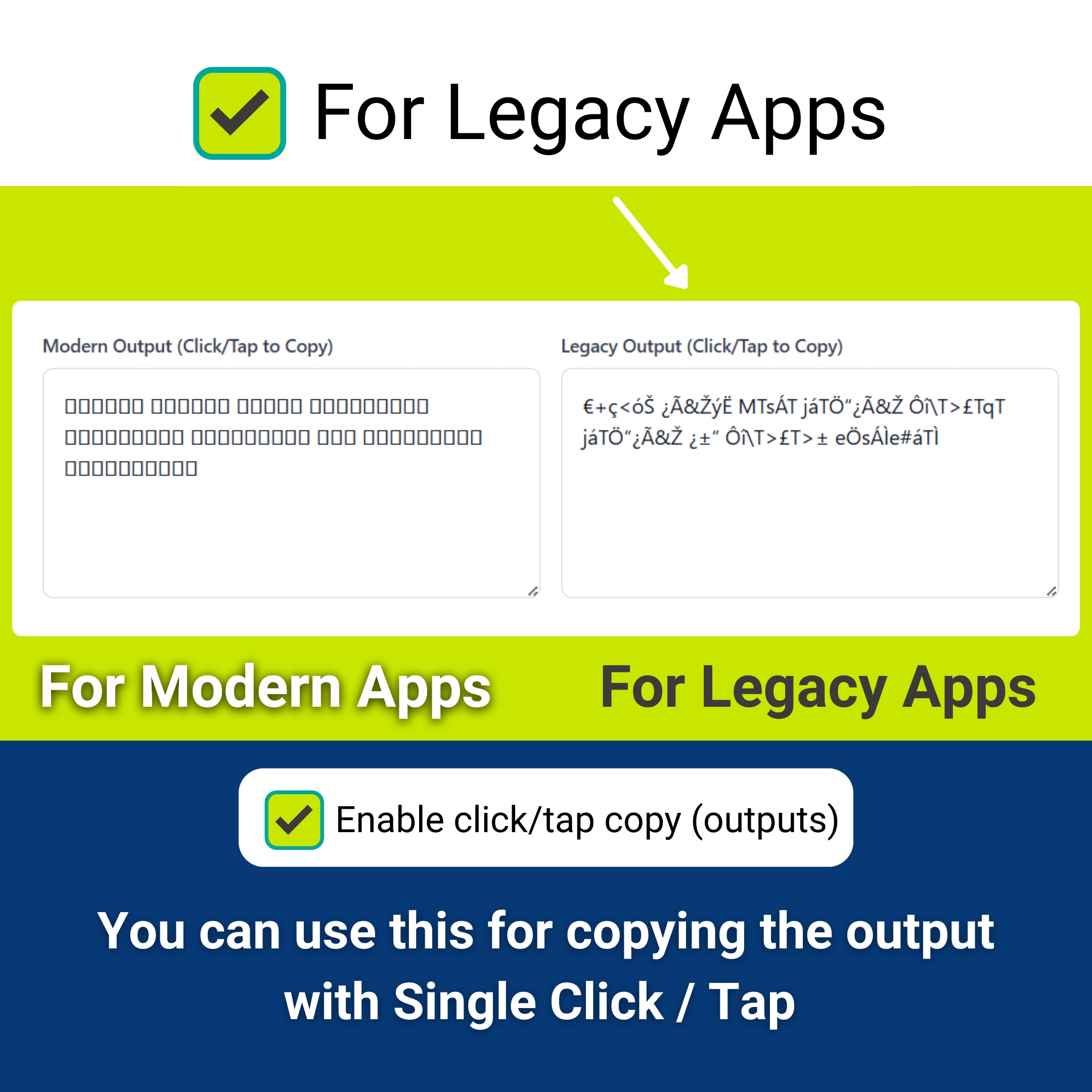
 Step 5: If You are Using Legacy Apps like Pagemaker, or any other old version of You Need to Enable "For Legacy Apps"
You Can also Toggle Between Light/Dark Theme on the Top Right Corner of the Navbar.